

wordpress plugin
Floating Contact
Menu Ultimate
More ways for your visitors to reach you.
More conversations. More conversions.
If you find it useful, consider supporting the development.
15+ Contact Channels
Phone, WhatsApp, Messenger, Email,Maps,SMS,Calendar, Reviews and more
ClickAnalytics
Track clicks, views and conversions with visual analytics and detailed statistics
Fully Customizable
Customize clolors, icons, positions,animations and labels to mutch your brand.
Wellcome Bubble
Display a friendly welvome bubble with custom message and tranlations.
Smart Visibility
Show or hide the menu on mobile, certain pages or devices.
Lightweight & Fast
Built wit performance in mind. No impact on your site speed.
Easy to Use
Simple interface. No coding required. Set up in minutes.
Regular Updates
Continuously improved with new features and compatibllity updates.
Why I Built It
Every plugin I build starts with a real problem.
While working on websites for businesses and personal projects, I realized that many visitors wanted a quick way to get in touch—but existing contact menu plugins were often either too limited, too complicated, or too heavy for what I needed.
I wanted something different.
A lightweight plugin that could be installed in minutes, support multiple communication channels, respect the website’s design, and give businesses complete control over how visitors contact them.
That idea became Floating Contact Menu Ultimate.
It’s completely free because I believe useful tools should be accessible to everyone. If it helps your business or your projects, supporting its future development through a donation is always appreciated—but never required.
My goal is simple:
Make communication easier for businesses and effortless for their visitors.

Stavros Kollias
Mathematician, Developer & Founder of LoadNPlay
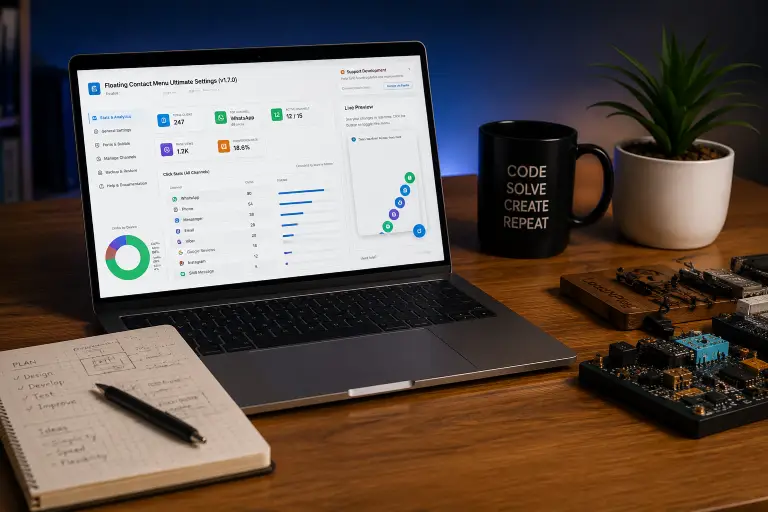
How it Works
1. Install
Install and activate the plugin from your Wordprerss dashboard.
2. Configure
Choose your channels, customize the design and set your preferences.
3. Publish
Save settings and the floating menu is live on your site.
4. Track & Improve
Monoitor clicks and performance and keep improving
See It In Action
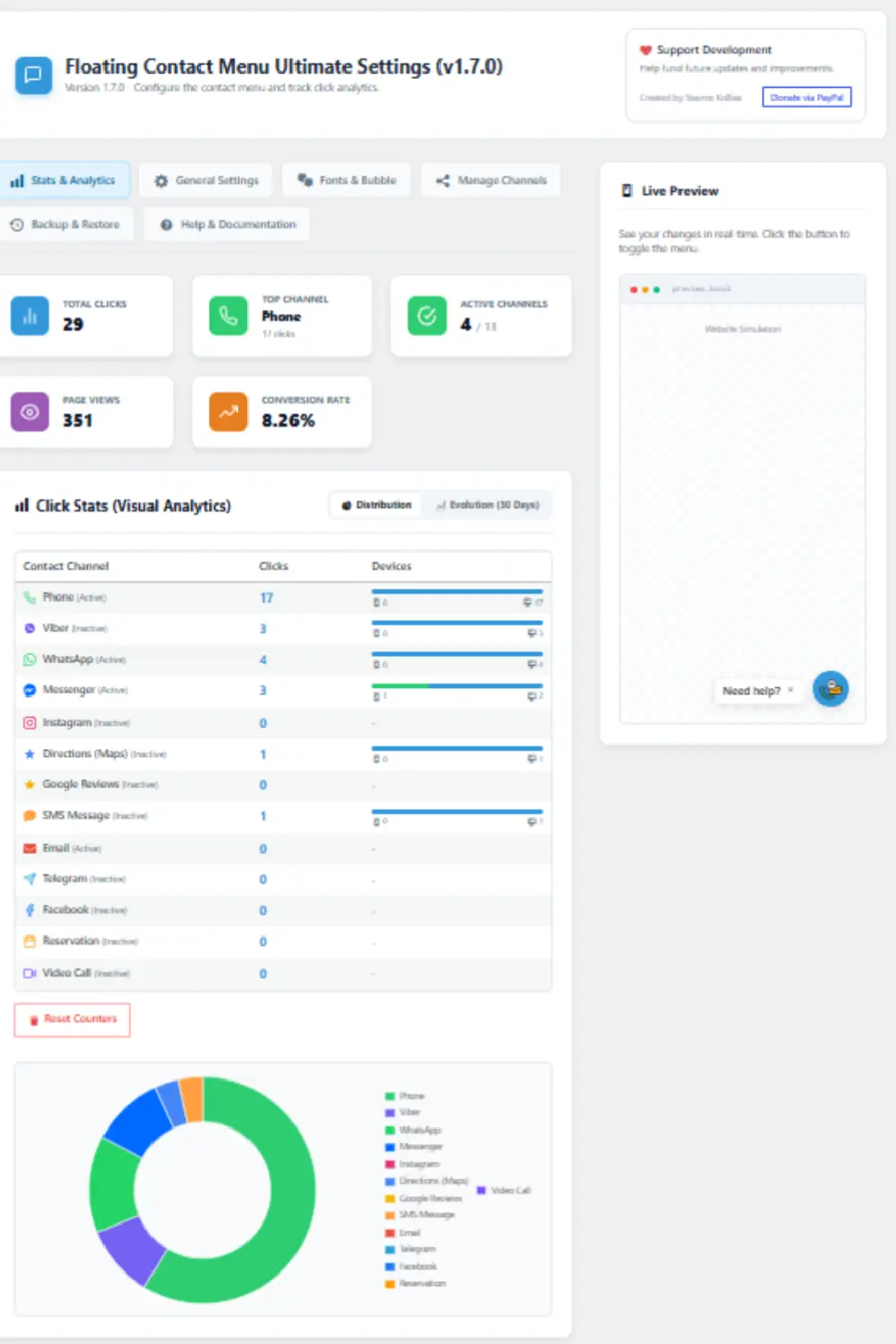
Statistics & Analytics
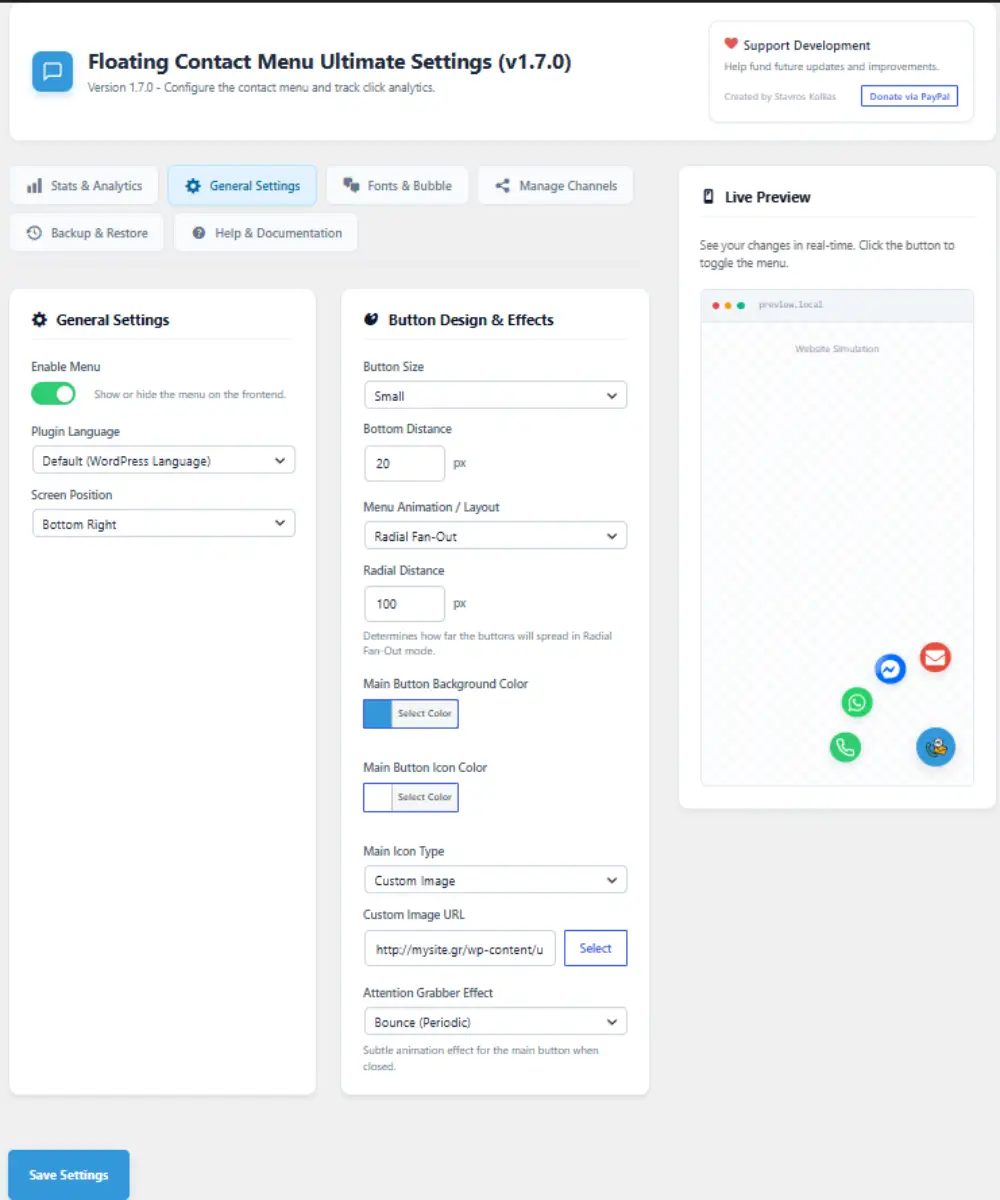
General Settings
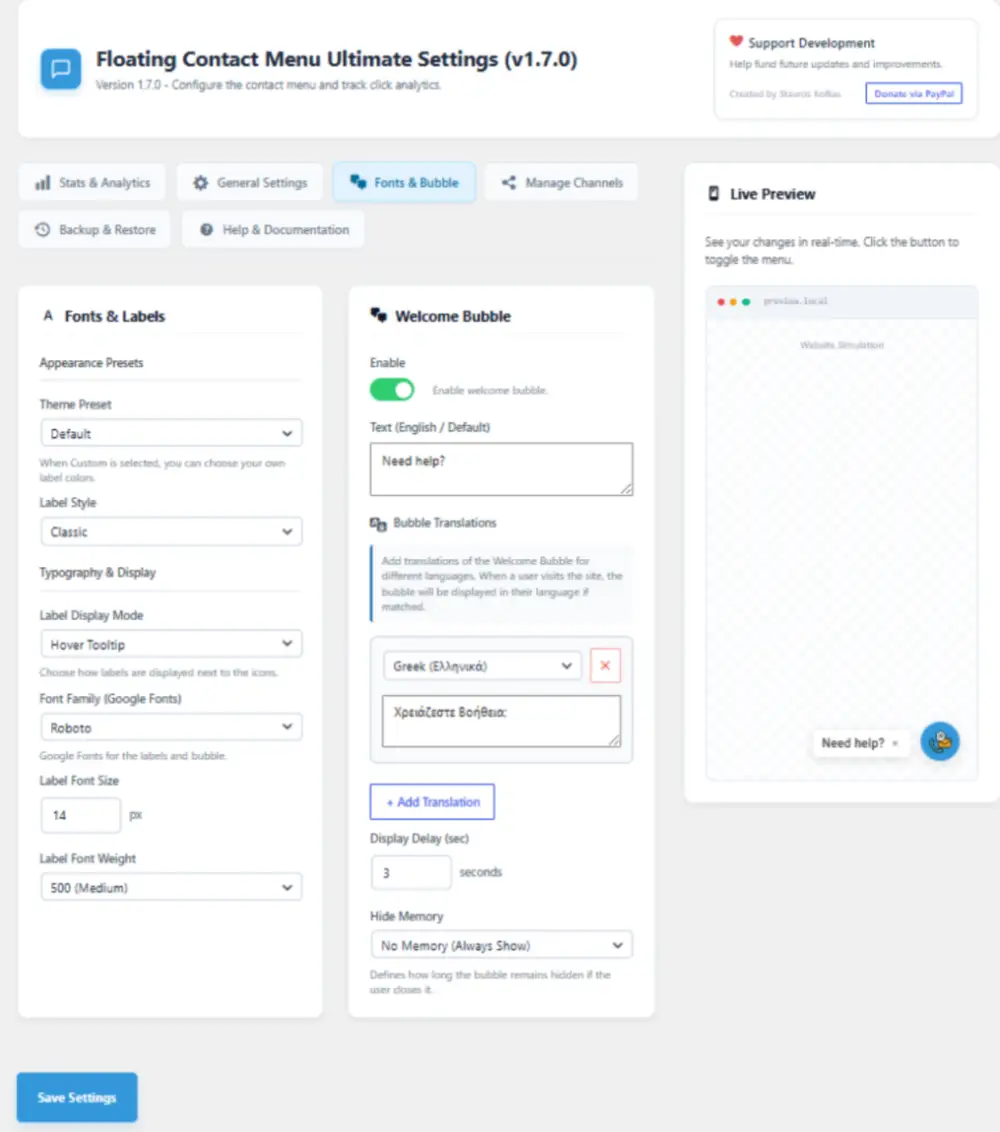
Fonts & Bubble
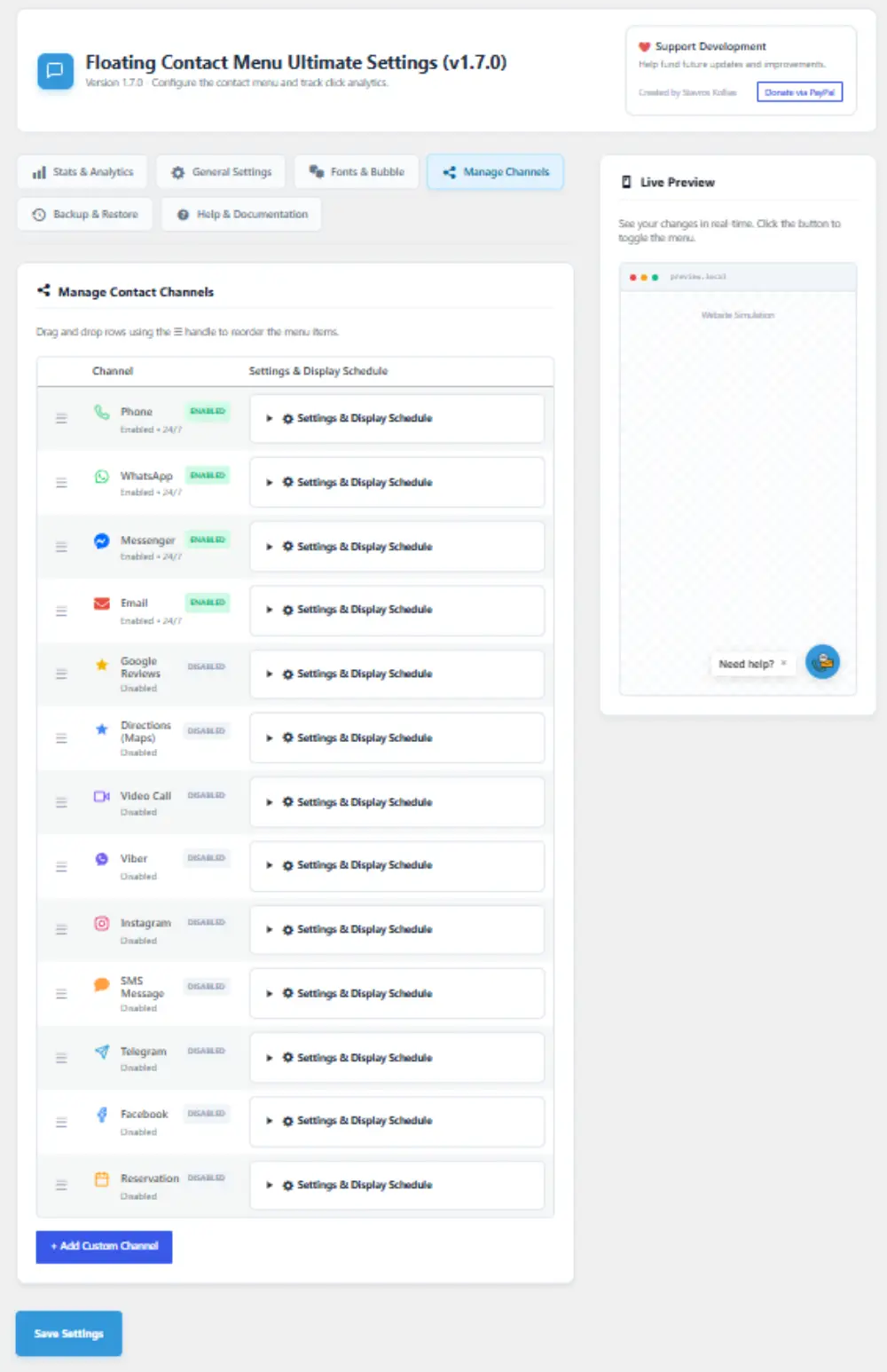
Manage Channels
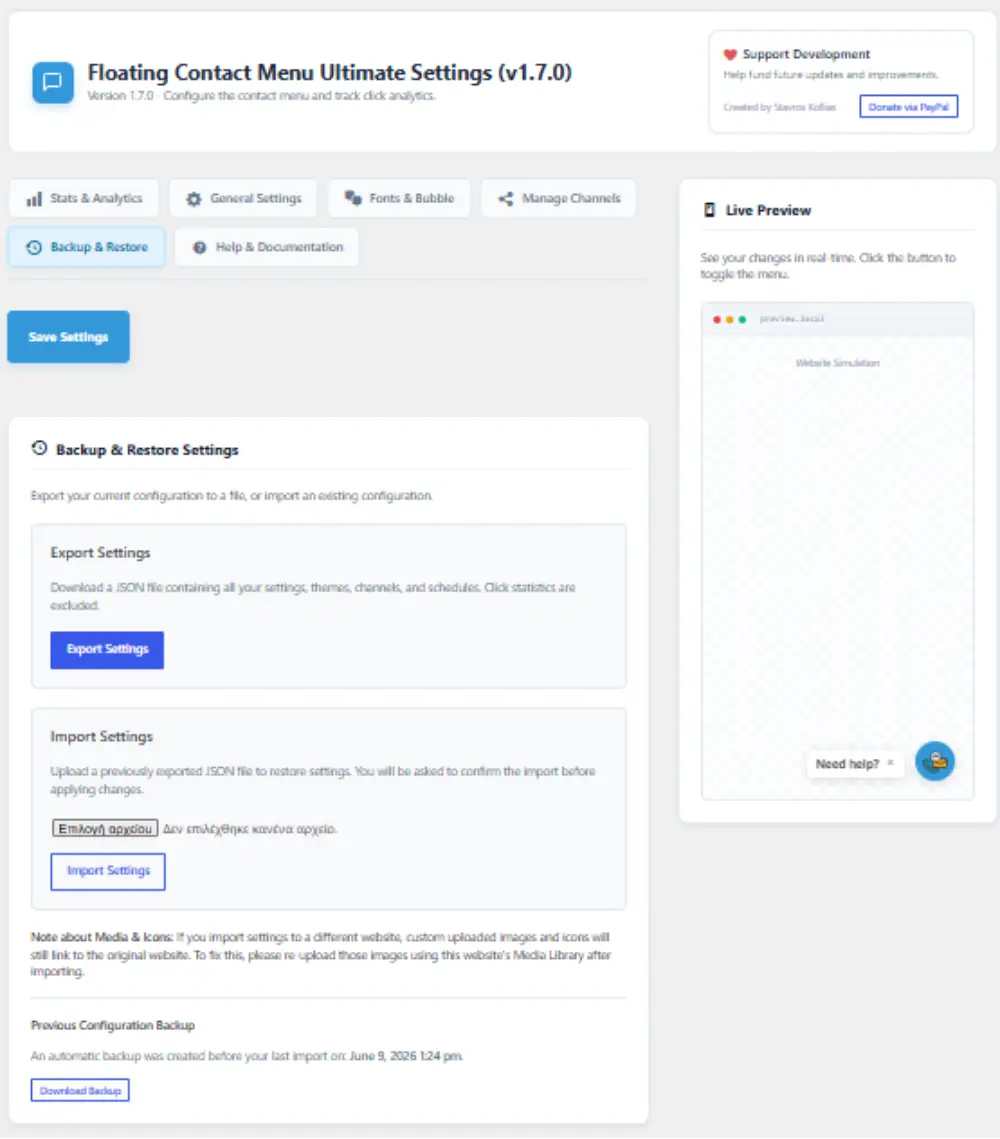
Backup & Restore
Who Is Floating Contact Menu Ultimate For?
Local Businesses
Get more calls and visits from local customers.
Service Providers
Make it easy for clients to contact you instantly.
E-commerce Stores
Increase trust and reduce cart abandonment.
Consultants
Book more appointments and consultations.
Restaurants & Cafes
Take reservations and answer questions faster.
Agencies
Improve client communication.
Get Floating Contact Menu Ultimate up and running in less than five minutes.
This quick guide covers the essential steps to install, configure and display your floating contact menu.
Step 1 — Install & Activate
Install the plugin from the WordPress Plugin Directory or upload the ZIP file manually.
Once the installation is complete, click Activate.
Step 2 — Open the Plugin
From your WordPress Dashboard navigate to:
Contact Menu → Settings
This opens the main configuration screen.
Step 3 — Enable the Menu
Open the General Settings tab and turn on:
Enable Menu
Your floating button is now ready to appear on the frontend.
Step 4 — Choose a Theme Preset
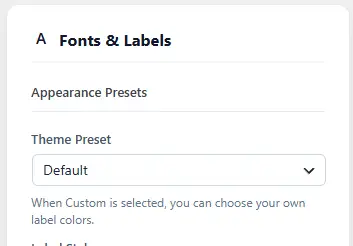
Go to Fonts & Bubble and select one of the available Theme Presets.
If you’re unsure which one to choose, start with Default or Ocean Breeze, then customize it later if needed.
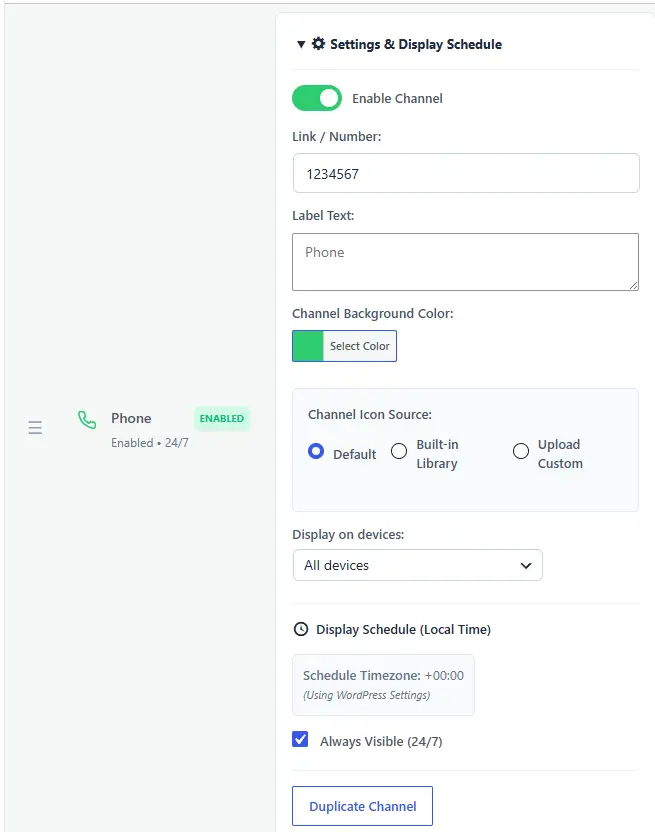
Step 5 — Add Your Contact Channels
Open Manage Channels.
Enable the communication methods you want visitors to use, for example:
- 📞 Phone
- ⭐ Google Reviews
Enter the required information for each channel, such as a phone number, email address or URL.
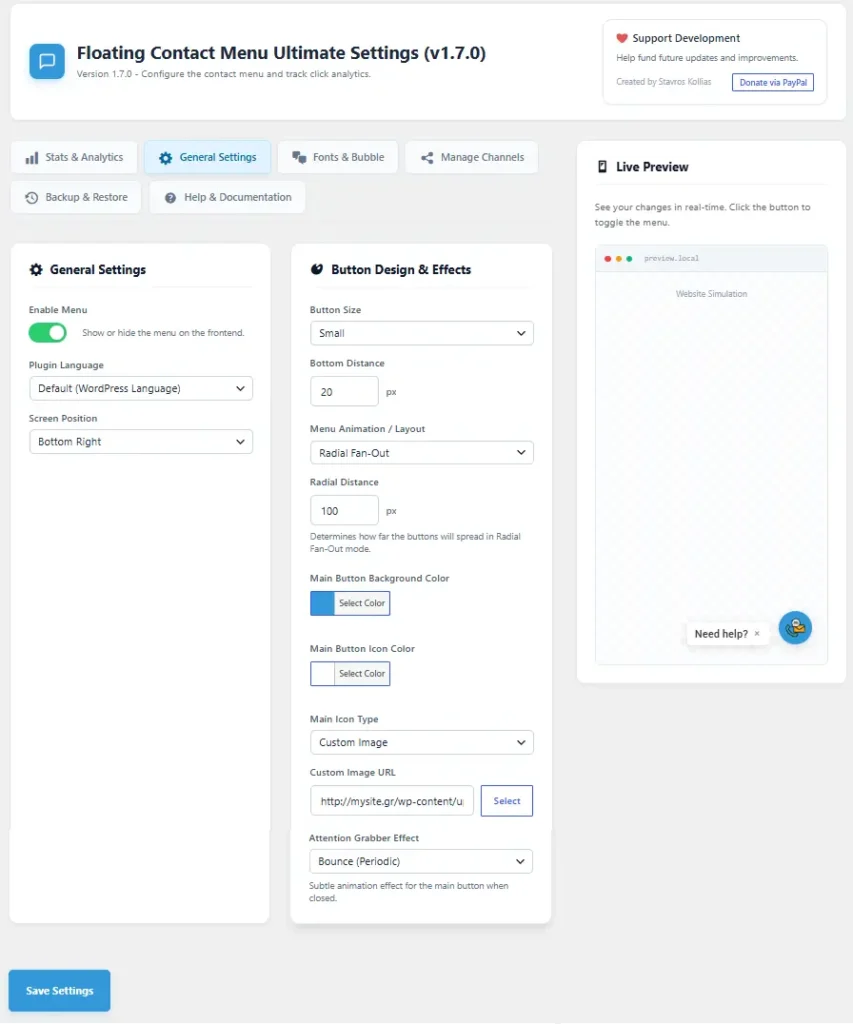
Step 6 — Customize the Button
Return to General Settings and personalize your floating button.
You can change:
- Button size
- Screen position
- Animation
- Colors
- Main icon
- Attention effect
Use the Live Preview panel to instantly see your changes.
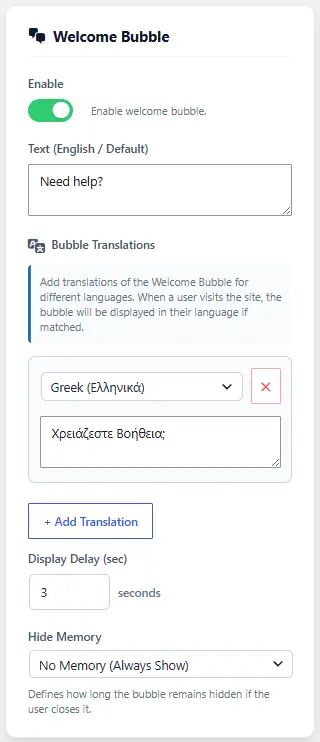
Step 7 — Configure the Welcome Bubble (Optional)
Open Fonts & Bubble and enable the Welcome Bubble.
Add a friendly message, such as:
Questions? We’re here to help!
or
Need help?
If your website is multilingual, you can add translations for each language.
Step 8 — Save Your Settings
Click Save Settings.
Visit your website and verify that the floating contact menu appears correctly.
Recommended Starter Configuration
For most business websites, we recommend the following setup:
| Setting | Recommendation |
|---|---|
| Position | Bottom Right |
| Button Size | Small |
| Theme Preset | Ocean Breeze or Default |
| Animation | Radial Fan-Out |
| Welcome Bubble | Enabled |
| Label Display | Hover Tooltip |
You’re Ready!
Your visitors can now contact you with a single click.
As your needs grow, you can further customize the menu by changing colors, adding more communication channels, configuring display schedules and tracking visitor interactions through the built-in analytics dashboard.
Installing Floating Contact Menu Ultimate takes less than a minute. Once activated, you can immediately start configuring your contact channels and displaying the floating menu on your website.
Method 1 – Install from the WordPress Plugin Directory (Recommended)
1. Log in to your WordPress Dashboard.
2. Go to Plugins → Add New Plugin.
3. Search for Floating Contact Menu Ultimate.
4. Click Install Now.
5. After the installation is complete, click Activate.
The plugin is now installed and ready to use.
Method 2 – Upload the ZIP File
If you downloaded the plugin manually:
1. Log in to your WordPress Dashboard.
2. Navigate to Plugins → Add New Plugin.
3. Click Upload Plugin.
4. Select the downloaded floating-contact-menu-ultimate.zip file.
5. Click Install Now.
6. After the installation finishes, click Activate.
3. Access the Plugin
After activation, you’ll find the plugin in the WordPress admin menu:
Dashboard → Contact Menu
From there you can:
> Configure your contact channels
> Customize colors and icons
> Enable the welcome bubble
> View click analytics
> Preview the menu in real time
> Export or import your settings
4. Minimum Requirements
> Requirement Version WordPress 6.0 or newer
> PHP 8.0 or newer
> MySQL 5.7+ or MariaDB equivalent
5. First Steps
After installation we recommend the following setup:
1. Enable the floating menu.
2. Add your first contact channel (Phone or WhatsApp).
3. Choose a Theme Preset.
4. Configure the Welcome Bubble (optional).
5. Save your settings.
6. Visit your website and test the menu.
7. Your floating contact menu is now ready to help visitors reach you instantly.
6. Need Help?
If you encounter any issues during installation:
> Check that your WordPress and PHP versions meet the minimum requirements.
> Make sure no security plugin is blocking the activation process.
> Disable caching temporarily if changes are not immediately visible.
> Visit the FAQ and Troubleshooting sections of the documentation for common solutions
Congratulations! Floating Contact Menu Ultimate is now installed and activated.
In just a few minutes, you’ll have a fully functional floating contact menu that allows your visitors to reach you through their preferred communication channels.
Step 1 – Open the Plugin Settings
From your WordPress Dashboard, navigate to:
Contact Menu → General Settings
This opens the main configuration page where you can customize every aspect of the plugin.
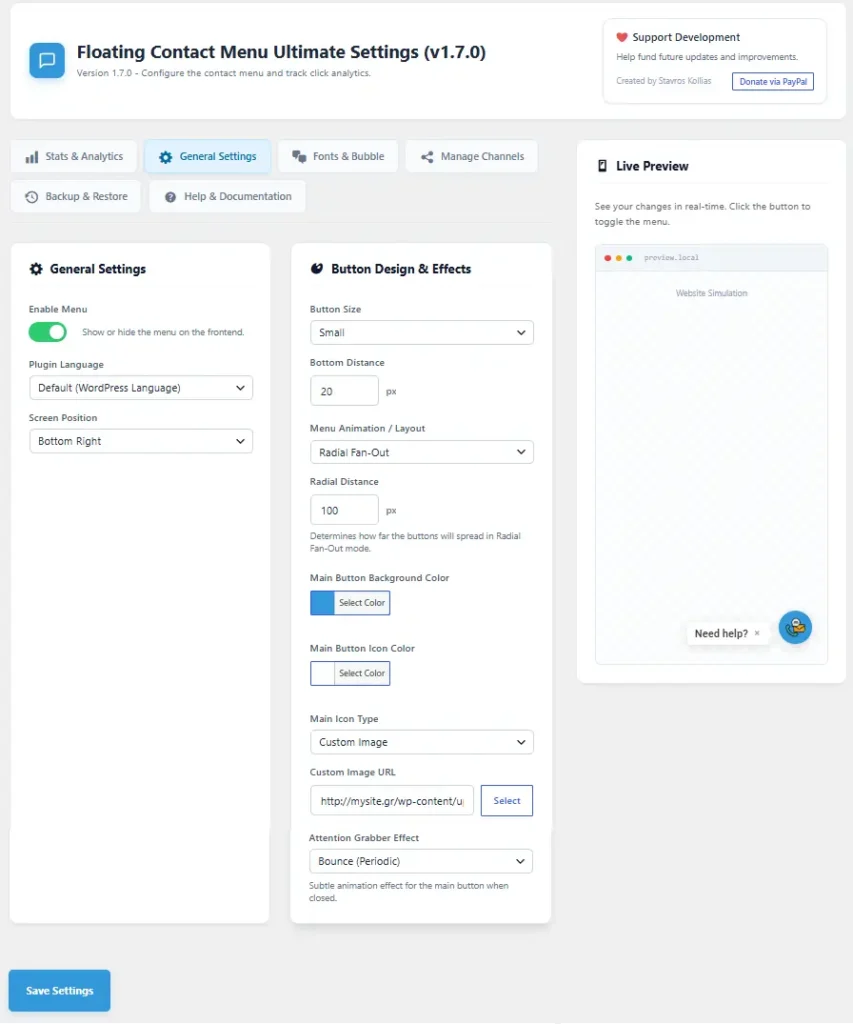
Step 2 – Enable the Menu
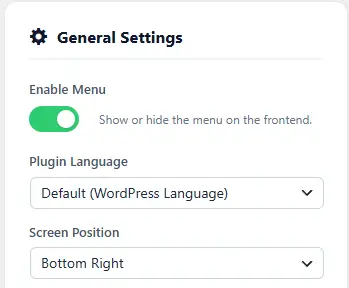
In the General Settings tab, make sure Enable Menu is switched ON.
Once enabled, the floating button will appear on your website according to your selected settings.
Step 3 – Choose Your Language
If your website is multilingual or uses a language other than English, select the appropriate language from the Plugin Language dropdown.
You can also add translations for the Welcome Bubble later.
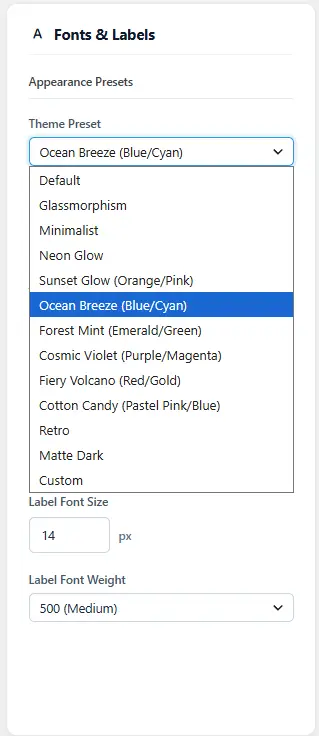
Step 4 – Select a Theme Preset
Choose one of the available Theme Presets to quickly apply a professional appearance.
Available presets include styles such as:
✓ Default
✓ Ocean Breeze
✓ Glassmorphism
✓ Minimalist
✓ Matte Dark
✓ Retro
✓ Custom
You can always switch to Custom later and personalize every color.
Step 5 – Configure Your First Contact Channel
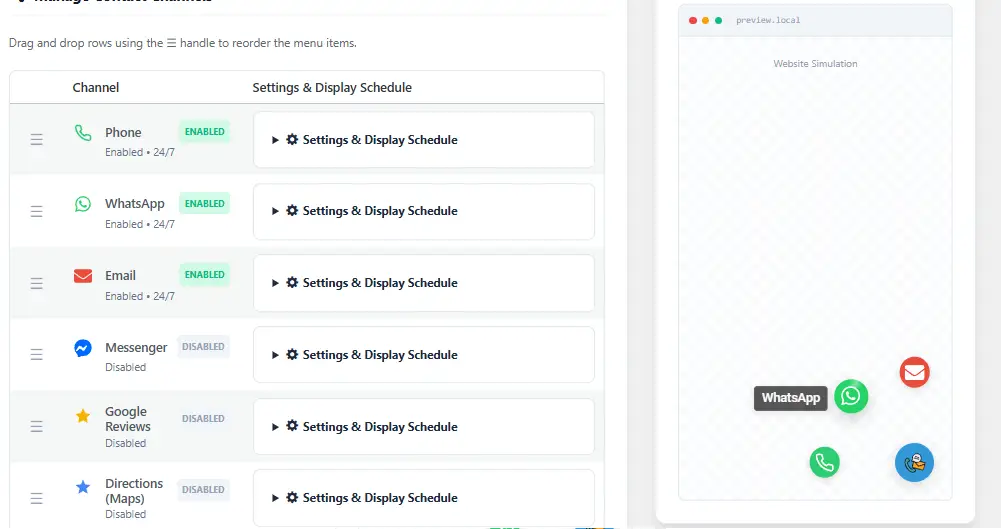
Open the Manage Channels tab.
Enable the communication channels you want your visitors to use.
Popular choices include:
✓ Phone
✓ WhatsApp
✓ Messenger
✓ Email
✓ Google Reviews
✓ Directions (Maps)
Enter the required information for each channel, such as a phone number, email address or URL.
Step 6 – Customize the Button
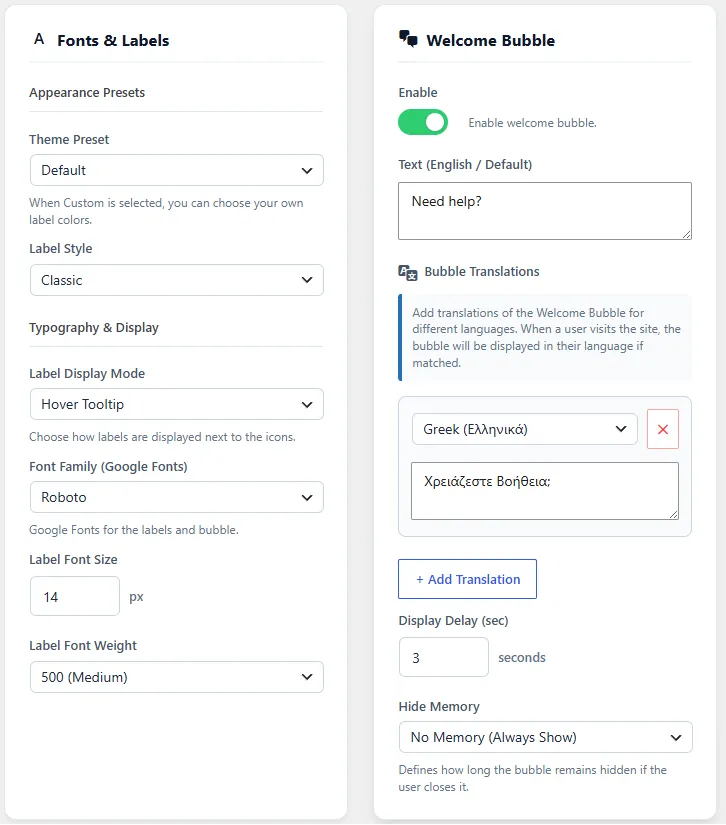
Open Fonts & Bubble and configure:
✓ Label Style
✓ Theme Preset
✓ Font Family
✓ Welcome Bubble
✓ Bubble Text
✓ Colors
These settings allow the menu to match the design of your website.
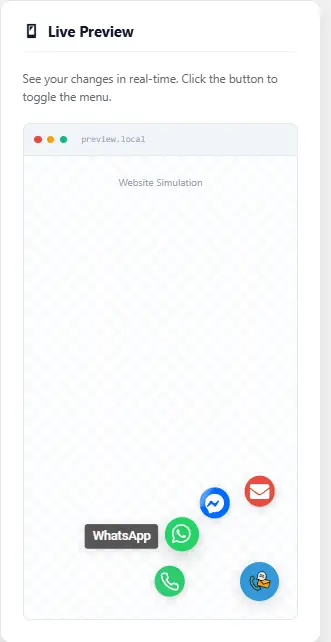
Step 7 – Preview Your Changes
Use the Live Preview panel on the right side of the screen.
The preview updates instantly, allowing you to see how the floating menu will look before saving your changes.
Step 8 – Save Your Settings
When you’re happy with the configuration, click Save Settings.
Your floating contact menu is now ready to appear on your website.
Recommended First Setup
For the best experience, we recommend enabling:
✓ Phone
✓ WhatsApp
✓ Email
✓ Welcome Bubble
✓ Ocean Breeze or Default Theme Preset
This combination works well for most business websites and provides visitors with multiple ways to get in touch.
Next Step
Now that your menu is working, continue with the next guide:
Managing Contact Channels
You’ll learn how to configure each supported channel, customize its behavior and decide when and where it should be displayed.
The Fonts & Bubble section allows you to customize the visual appearance of your floating menu. From typography and label styles to the Welcome Bubble, these settings help you create a contact menu that blends seamlessly with your website’s design.
Appearance Presets
1. Theme Preset
Theme Presets provide a quick way to change the overall appearance of your floating menu without manually configuring individual colors.
Simply choose a preset from the dropdown list and the plugin will automatically apply a professionally designed color scheme.
Available presets may include:
- Default
- Ocean Breeze
- Glassmorphism
- Minimalist
- Neon Glow
- Matte Dark
- Retro
- Custom
If you select Custom, you can personalize the colors of individual channels and interface elements.
💡 Tip
Start with a preset that matches your website’s primary colors. You can always switch to Custom later for complete control.
2. Label Style
Choose how labels are displayed next to your contact channels.
Different label styles allow the menu to match both modern and classic website designs.
Select the style that best fits your branding and user experience.
💡 Tip
Simpler label styles usually work better on business websites, while more decorative styles can help creative portfolios stand out.
3. Typography & Display
Typography plays an important role in readability and overall appearance.
4. Label Display Mode
Choose when labels should be visible.
Depending on the selected mode, labels can:
- Always remain visible
- Appear only when hovering over a button
- Follow the selected display behavior
Hover-only labels create a cleaner interface, especially when many channels are enabled.
💡 Tip
If you use six or more contact channels, Hover Tooltip keeps the menu compact and prevents it from covering page content.
5. Font Family
Select a Google Font for your labels and Welcome Bubble.
Choose a font that matches the typography already used on your website to create a consistent visual identity.
6. Label Font Size
Adjust the size of the label text.
Larger text improves readability, while smaller text creates a cleaner, more compact appearance.
Always consider both desktop and mobile users when choosing the font size.
7. Label Font Weight
Control how bold the labels appear.
Available options range from lighter weights to bold styles.
Medium weights usually provide the best balance between readability and elegance.
💡 Tip
Avoid using very bold fonts unless they match the overall style of your website.
8. Welcome Bubble
The Welcome Bubble is a small message displayed next to the floating button to encourage visitors to interact with your contact menu.
A friendly greeting often increases engagement by letting visitors know that help is only one click away.
9. Enable
Use the toggle switch to enable or disable the Welcome Bubble.
When disabled, only the floating menu button is displayed.
10. Bubble Text
Enter the message you want visitors to see.
Keep it short, friendly and action-oriented.
Examples:
- Need help?
- Have a question?
- Let’s chat!
- Contact us anytime!
- How can we help?
Short messages usually perform better than long sentences.
💡 Tip
Asking a question (“Need help?”) often encourages more interaction than using a generic statement.
11. Bubble Translations
If your website is multilingual, you can create translated versions of the Welcome Bubble.
Select a language, enter the translated message and click Add Translation.
When visitors browse your website in their preferred language, the corresponding bubble text will be displayed automatically.
This feature works particularly well with multilingual WordPress websites.
💡 Tip
Translate the Welcome Bubble even if the rest of your website is bilingual. A greeting in the visitor’s own language creates a more welcoming experience.
12. Display Delay
Control how long the plugin waits before displaying the Welcome Bubble.
A short delay makes the greeting appear almost immediately, while a longer delay gives visitors time to focus on the page content first.
The ideal value depends on your website and audience.
For most websites, 3 seconds provides a natural balance.
13. Hide Memory
Hide Memory determines how the Welcome Bubble behaves after a visitor closes it.
Depending on the selected option, the bubble can:
- Always appear
- Remain hidden for a period of time
- Follow the selected memory behavior
This prevents the bubble from becoming repetitive for returning visitors.
💡 Tip
For business websites, using a memory option improves the user experience by avoiding repeated interruptions.
14. Live Preview
As you customize fonts, labels and the Welcome Bubble, the Live Preview panel updates instantly.
Use it to verify:
- Font appearance
- Label visibility
- Bubble position
- Bubble text
- Overall visual balance
There’s no need to save your settings before seeing the results.
15. Best Practices
To create an attractive and user-friendly contact menu, we recommend:
- Use the same font family as the rest of your website.
- Keep labels short and easy to read.
- Use concise Welcome Bubble messages.
- Translate the bubble for multilingual websites.
- Choose a Theme Preset that complements your branding.
- Avoid excessive font sizes that may overlap with page content.
💡 Pro Tip
The Welcome Bubble should invite, not interrupt.
Messages like:
- Need help?
- Questions? Let’s talk!
- We’re here if you need us.
feel natural and encourage interaction.
Avoid overly promotional messages such as:
- Buy Now!
- Limited Offer!
- Click Here!
Visitors are far more likely to engage when the bubble feels like a genuine invitation rather than an advertisement.
⭐ Recommended Settings
- Theme Preset: Ocean Breeze
- Label Style: Classic
- Label Display Mode: Hover Tooltip
- Font: Roboto
- Font Weight: 500 (Medium)
- Display Delay: 3 seconds
- Hide Memory: Remember after closing
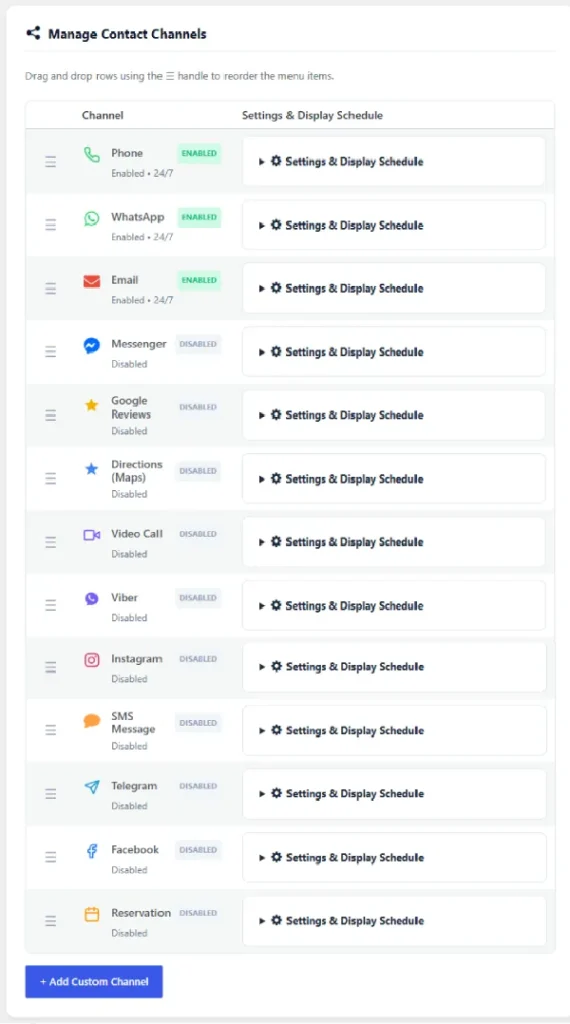
The Manage Channels section is where you build your floating contact menu.
Here you can enable communication channels, configure their settings, arrange their order and decide when and where each channel is displayed.
Each channel is completely independent, allowing you to create a contact menu tailored to your business.
1. Available Channels
Floating Contact Menu Ultimate includes support for the most popular communication platforms.
Available channels include:
📞 Phone
💬 WhatsApp
💜 Viber
💬 Messenger
📧 Email
⭐ Google Reviews
📍 Directions (Google Maps)
📹 Video Call
📷 Instagram
💬 SMS
✈️ Telegram
📘 Facebook
📅 Reservation
➕ Custom Channels
Enable only the channels your visitors are most likely to use.
💡 Tip
More channels do not always mean better usability. A focused menu with 4–6 relevant options is usually more effective than a long list of rarely used channels.
2. Enabling a Channel
Each channel includes an Enable / Disable switch.
When enabled, the channel becomes part of your floating menu.
When disabled, its configuration is preserved but it is hidden from visitors.
This allows you to temporarily remove channels without deleting their settings.
3. Channel Settings
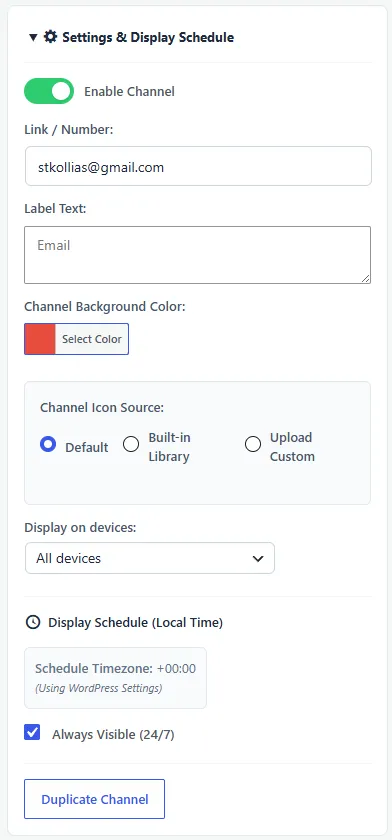
Expand a channel to access its configuration panel.
Depending on the selected channel, you can configure:
> Contact information (phone number, email address or URL)
> Label
> Icon
> Background color
> Display schedule
> Device visibility
Each channel can be customized independently.
4. Channel Labels
Every channel can display a custom label.
Examples:
Channel Suggested Label
Phone Call Us
WhatsApp Chat on WhatsApp
Email Send an Email
Google Reviews Read Reviews
Directions Get Directions
Clear labels help visitors understand exactly what will happen when they click.
💡 Tip
Use action-oriented labels whenever possible. “Call Us” is usually more effective than simply “Phone.”
5. Icons
Each communication channel includes a matching icon.
If desired, you can replace the default icon with your own custom icon or image to better match your branding.
Using consistent icon styles throughout the menu creates a cleaner appearance.
6. Channel Colors
Customize the background color of each channel independently.
You can:
- Match your website branding
- Use official brand colors
- Create your own color palette
For example:
- WhatsApp → Green
- Messenger → Blue
- Instagram → Gradient-inspired pink/orange
- Email → Red
Using familiar colors helps visitors instantly recognize each communication method.
7. Display Schedule
Each channel includes its own Settings & Display Schedule section.
Display schedules allow you to decide exactly when a channel is available.
For example:
- Phone only during business hours.
- WhatsApp available until late evening.
- Reservation link available at all times.
This prevents visitors from trying to contact you through channels that are currently unavailable.
💡 Tip
If you don’t answer phone calls outside business hours, schedule the Phone channel accordingly and keep WhatsApp or Email available instead.
8. Device Visibility
Each channel can be configured to appear only on specific devices.
Typical examples include:
- Phone → Mobile only
- WhatsApp → Mobile only
- Email → Desktop and Mobile
- Directions → Mobile preferred
This allows you to provide the best experience for every visitor.
9. Reordering Channels
Use the drag handle on the left side of each channel to change its position.
The order displayed in the settings is exactly the order visitors will see.
Place your most frequently used communication methods near the top.
A common order is:
- Phone
- Messenger
- Google Reviews
- Directions
10. Adding Custom Channels
Need to link to another service?
Click Add Custom Channel to create your own communication button.
Custom channels can be used for:
- Booking systems
- Help Centers
- CRM portals
- Customer dashboards
- Support tickets
- Online forms
- Payment pages
- Any external URL
This makes Floating Contact Menu Ultimate flexible enough to work with virtually any website.
💡 Tip
Use Custom Channels for services that don’t have a built-in integration. This allows you to keep all important actions inside a single floating menu.
10. Live Preview
Every change you make is reflected immediately in the Live Preview panel.
Use it to verify:
- Channel order
- Icons
- Labels
- Colors
- Overall appearance
Previewing your menu before saving helps ensure a polished result.
11. Best Practices
For the best user experience:
- Enable only the channels your audience actually uses.
- Keep the number of visible channels manageable.
- Place your primary contact method first.
- Use recognizable labels and icons.
- Configure display schedules for business-hour-only channels.
- Test the menu on both desktop and mobile devices.
⭐ Recommended Configuration
For most business websites, we recommend:
| Channel | Status |
|---|---|
| 📞 Phone | Enabled |
| Enabled | |
| Enabled | |
| ⭐ Google Reviews | Enabled |
| 📍 Directions | Enabled |
| 💜 Viber / Messenger | Optional |
This setup gives visitors multiple ways to contact you while keeping the menu clean and easy to use.
💡 Pro Tip
Think of your floating menu as a shortcut, not a directory.
Every button should answer the question:
“What’s the fastest way for this visitor to contact me right now?”
If a channel isn’t useful to your audience, it’s better to leave it disabled. A simple, focused menu almost always performs better than one crowded with options.
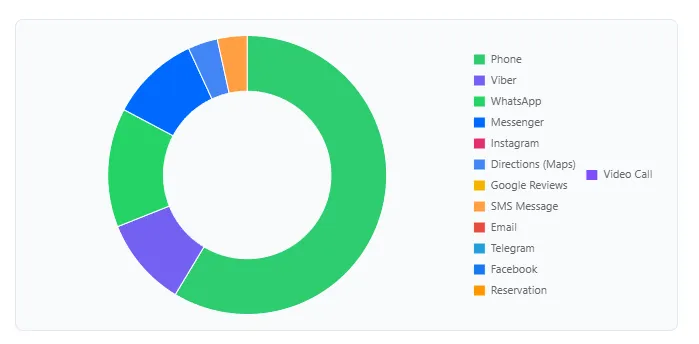
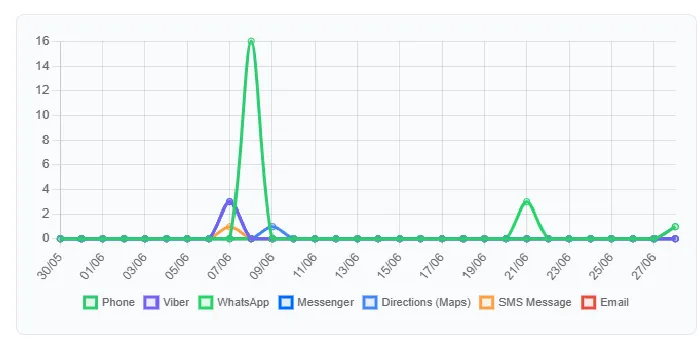
The Stats & Analytics dashboard provides valuable insights into how visitors interact with your floating contact menu.
Instead of guessing which communication channels are most effective, you can monitor real usage and make informed decisions based on actual visitor activity.
All statistics are stored locally within your WordPress website.
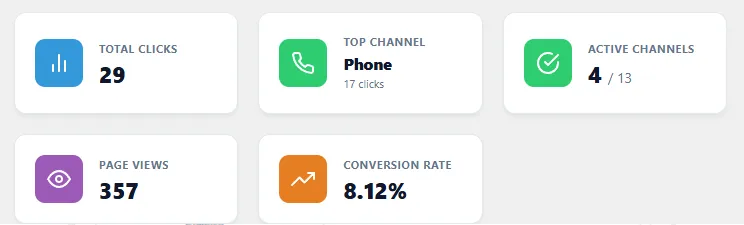
1. Dashboard Overview
The analytics dashboard gives you a quick summary of your menu’s overall performance. At a glance, you can monitor:
- Total Clicks
- Total Page Views
- Conversion Rate
- Most Popular Channel
These key metrics help you evaluate how effectively your floating contact menu encourages visitor interaction.2
2. Total Clicks
The Total Clicks counter shows how many times visitors have interacted with your contact channels.
Every successful click is recorded and contributes to your overall statistics.
A growing number of clicks usually indicates that your contact menu is attracting attention and encouraging visitors to take action.
💡 Tip
A sudden increase in clicks often follows marketing campaigns, social media posts or seasonal promotions. Compare your analytics with your marketing activities to better understand visitor behavior.
3. Total Page Views
This metric shows how many pages containing the floating menu have been viewed.
Comparing Page Views with Total Clicks gives you a better understanding of visitor engagement.
4. Conversion Rate
The Conversion Rate represents the percentage of page views that resulted in a click on one of your communication channels.
A higher conversion rate generally indicates that your contact menu is clearly visible, attractive and easy to use.
💡 Tip
If your conversion rate is lower than expected, try changing the button position, enabling the Welcome Bubble or reducing the number of visible channels.
5. Most Popular Channel
The dashboard automatically identifies the communication channel receiving the highest number of clicks.
This helps you understand which contact method your visitors prefer.
For example:
- Phone
- Messenger
- Google Reviews
Knowing which channels perform best allows you to prioritize them within your menu.
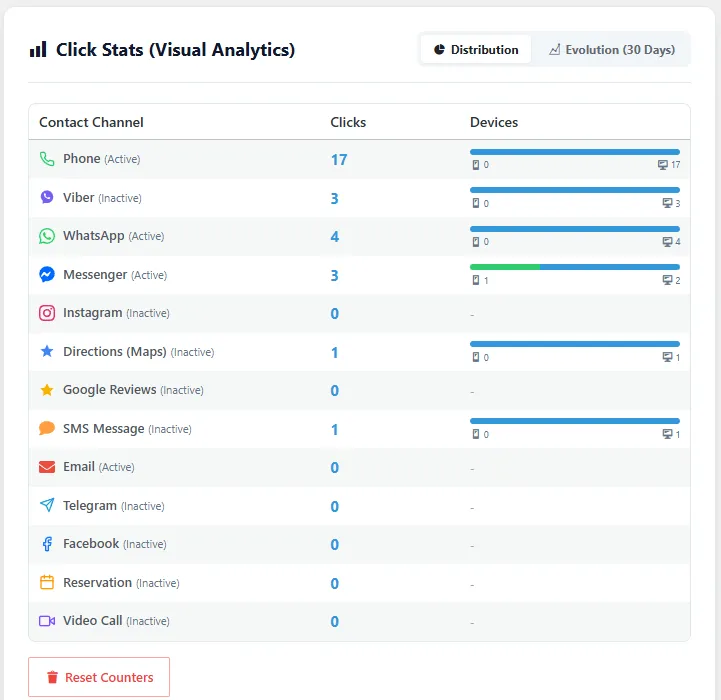
6. Channel Statistics
Below the summary cards you’ll find a detailed table listing every enabled communication channel.
For each channel the plugin displays:
- Channel Name
- Total Clicks
- Percentage of Total Clicks
This makes it easy to compare the popularity of different communication methods.
7. Automatic Updates
Statistics are updated automatically as visitors interact with your floating menu.
No manual synchronization is required.
Simply open the dashboard to view the latest results.
8. Local Data Storage
All analytics data is stored locally within your own WordPress database.
Floating Contact Menu Ultimate does not send your statistics to external servers.
This gives you full control over your data while keeping your analytics lightweight and privacy-friendly.
💡 Tip
Because all data remains on your website, regular database backups will also preserve your analytics history.
9. Using Analytics to Improve Conversions
Analytics become truly valuable when you use them to improve the visitor experience.
For example:
- Move frequently used channels higher in the menu.
- Disable channels that receive little or no interaction.
- Test different Theme Presets.
- Experiment with different Welcome Bubble messages.
- Compare performance before and after changing button colors or animations.
Small changes can often produce significant improvements in visitor engagement.
10. Best Practices
To get the most useful analytics:
- Keep your menu visible on the pages where visitors are most likely to contact you.
- Review your statistics regularly.
- Prioritize high-performing communication channels.
- Avoid enabling unnecessary channels.
- Test different layouts and compare their results over time.
⭐ Recommended Workflow
A simple monthly review can help you continuously improve your menu:
- Review the analytics dashboard.
- Identify your top-performing channel.
- Move that channel to the top if it isn’t already.
- Remove or disable channels with consistently low engagement.
- Test a different Welcome Bubble or Theme Preset.
- Compare your results after a few weeks.
Continuous small improvements often have a greater impact than large one-time changes.
💡 Pro Tip
Don’t focus only on the total number of clicks.
Pay attention to which channels your visitors actually prefer.
A business that receives most of its contacts through WhatsApp should highlight WhatsApp. A restaurant may see more interactions through Phone and Directions, while an online store might benefit more from Email and Messenger.
The best floating contact menu isn’t the one with the most buttons—it’s the one that makes the preferred communication method instantly accessible.
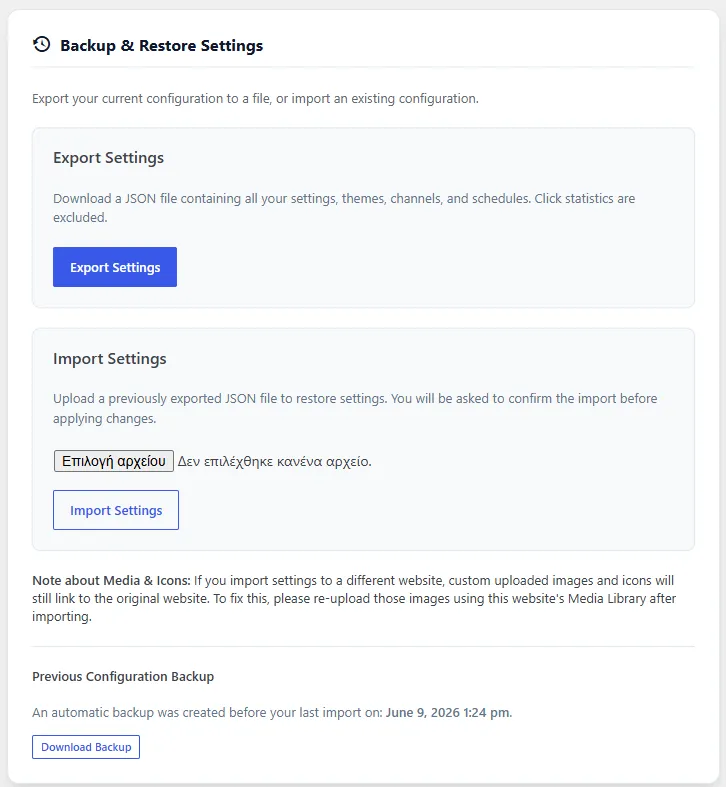
The Backup & Restore section allows you to export your plugin settings, create backups and quickly restore your configuration whenever needed.
Whether you’re moving your settings to another website, creating a safety backup before making changes or restoring a previous configuration, this feature makes the process simple and reliable.
1. Why Use Backup & Restore?
Configuring a floating contact menu can take time, especially if you’ve customized multiple channels, colors, schedules and labels.
Instead of recreating everything from scratch, you can save your complete configuration and restore it whenever you need it.
Common use cases include:
- Migrating to a new website
- Creating a backup before updating the plugin
- Duplicating the same configuration across multiple websites
- Recovering after accidental changes
2. Export Settings
Click Export Settings to download your current plugin configuration.
The plugin creates a JSON file containing your settings.
This file includes your plugin configuration, allowing you to restore it later or import it into another WordPress installation.
Store your backup file in a safe location.
💡 Tip
Create a backup before making major configuration changes or updating the plugin. Restoring a previous setup takes only a few seconds.
3. Import Settings
To restore a previous configuration:
- Open the Backup & Restore tab.
- Click Choose File.
- Select a previously exported JSON backup.
- Click Import Settings.
- Confirm the import.
Your existing settings will be replaced with the imported configuration.
4. What Gets Backed Up?
The exported file includes your plugin configuration, including settings such as:
- General Settings
- Theme Preset
- Fonts & Labels
- Welcome Bubble
- Contact Channels
- Channel Order
- Colors
- Display Schedules
- Device Visibility
- Custom Icons
- Other plugin preferences
This allows you to recreate the same floating contact menu on another website with minimal effort.
5. Before Importing
Before importing a configuration, consider the following:
- Importing settings replaces the current configuration.
- Export your existing settings first if you may want to restore them later.
- Make sure the backup file was created using a compatible version of the plugin.
Taking a backup before importing another configuration is always recommended.
6. Migrating to Another Website
Moving your floating contact menu to another WordPress website is straightforward:
- Export the settings from the original website.
- Install and activate Floating Contact Menu Ultimate on the new website.
- Import the exported JSON file.
- Review your contact information and make any necessary adjustments.
Your menu will be ready in just a few minutes.
7. Best Practices
To keep your configuration safe:
- Create a backup before updating the plugin.
- Keep several backup versions if you frequently change your configuration.
- Store backup files outside your WordPress installation.
- Export your settings before migrating to a new website.
Regular backups provide peace of mind and can save significant time.
⭐ Recommended Workflow
For most users, the following workflow works well:
- Configure your menu.
- Test it on desktop and mobile.
- Export a backup.
- Continue making improvements.
- Create a new backup after major updates.
Keeping recent backups ensures that you can always return to a working configuration if needed.
💡 Pro Tip
If you manage multiple WordPress websites, create a master configuration with your preferred design and communication channels.
You can then import that configuration into every new website and make only the small adjustments required, such as changing the phone number, email address or social media links.
This can save a considerable amount of setup time while maintaining a consistent experience across all your projects.
Below you’ll find answers to the most common questions about Floating Contact Menu Ultimate.
If you can’t find what you’re looking for, feel free to contact us or visit the documentation.
1. Is Floating Contact Menu Ultimate really free?
Yes.
Floating Contact Menu Ultimate is completely free to download and use.
There are no premium editions, locked features or recurring subscriptions.
If the plugin helps your business, you can support future development with a voluntary PayPal donation, but it is never required.
2. Will the plugin slow down my website?
No.
Performance was one of the main goals during development.
Floating Contact Menu Ultimate is lightweight and optimized to load only the resources it needs.
As with any WordPress plugin, overall performance also depends on your theme, hosting environment and the number of active plugins.
3. Can I customize the colors and icons?
Absolutely.
The plugin includes multiple Theme Presets and extensive customization options.
You can customize:
- Colors
- Icons
- Labels
- Typography
- Welcome Bubble
- Animations
- Button position
- Display schedules
- Device visibility
This allows the menu to blend naturally with your website.
4. Can I choose which channels appear on mobile devices?
Yes.
Each communication channel can have its own visibility settings.
You can display a channel on:
- Desktop
- Tablet
- Mobile
or any combination that best suits your visitors.
5. Is the plugin compatible with page builders?
Yes.
Floating Contact Menu Ultimate works independently of your page builder and is compatible with most modern WordPress themes and builders, including:
- Gutenberg
- Kadence
- Elementor
- Bricks
- Beaver Builder
- GeneratePress
- Astra
No additional integration is required.
6. Can I create my own custom contact buttons?
Yes.
In addition to the built-in communication channels, you can create custom channels linking to virtually any external website or service.
This makes the plugin flexible enough for booking systems, support portals, CRM platforms and many other use cases.
7. Does the plugin collect personal data?
No.
Floating Contact Menu Ultimate does not collect, transmit or sell visitors’ personal data.
The built-in analytics are stored locally within your own WordPress website.
If visitors choose to contact you through third-party services such as WhatsApp, Messenger or Google Reviews, those services operate under their own privacy policies.
8. Can I transfer my settings to another website?
Yes.
The built-in Backup & Restore feature allows you to export your configuration as a JSON file and import it into another WordPress installation.
This is especially useful if you manage multiple websites.
9. Do you provide updates?
Yes.
The plugin is actively maintained and regularly improved with bug fixes, performance enhancements and new features whenever they are ready.
We always recommend keeping the plugin updated to benefit from the latest improvements.
10. Do you offer support?
Yes.
Floating Contact Menu Ultimate is a free project, and I do my best to provide support whenever my schedule allows.
If you discover a bug, have a question or would like to suggest a new feature, you’re always welcome to get in touch.
Community feedback plays an important role in the ongoing development of the plugin, and every suggestion is carefully considered.
11. Where can I report a bug or request a feature?
If you encounter an issue or have an idea that could improve the plugin, we’d love to hear from you.
Bug reports and feature suggestions help make Floating Contact Menu Ultimate better for everyone.
Please use the Contact page or the support links provided on the LoadNPlay website.
💡 Before Contacting Support
To help us assist you more quickly, please include:
- Your WordPress version
- Your PHP version
- The plugin version you’re using
- A short description of the issue
- Screenshots, if applicable
- Steps to reproduce the problem
The more information you provide, the easier it is to identify and resolve the issue.
Still Need Help?
If your question isn’t covered in this FAQ, visit the Documentation or contact us.
We’ll do our best to help you get the most out of Floating Contact Menu Ultimate.

❤️ Support Future Development
Floating Contact Menu Ultimate is completely free and always will be.
If it saves you time, helps your business, or improves your website, consider supporting future development with a small PayPal donation.
Thank you for your support!